Evolvement LLC logo

Fluent UI

Modern Microsoft-style user interfaces for dashboards, portals, internal tools, AI workspaces, Teams-connected chat blades, adjustable layouts, notes panels, and agent-driven enterprise applications.

What We Build

  • Microsoft Fluent-style application shells for dashboards, portals, operations centers, and AI-enabled workspaces.
  • Teams-connected chat blades that attach to the left side of the application for collaboration, support, and contextual messaging.
  • Top command buttons that expand, collapse, resize, or adjust the top area of the screen for more working space.
  • Marquee bars that scale content, shift visuals left, and reveal right-side detail panels without losing context.
  • Notes buttons, AI Agent buttons, traceability panels, approval areas, and guided workflow controls.

Example Use Cases

  • Operations dashboard with Teams chat attached on the left and AI recommendations on the right.
  • Power BI-style visual workspace where users can resize top filters and scale report content.
  • AI Agent side panel that explains insights, proposes actions, and creates automations or notes.
  • Fluent UI portal for Power Apps, APIs, maps, workflows, dashboards, and LLM responses.
  • Responsive application shell that works across large screens, training rooms, and executive briefings.

Fluent UI as the Enterprise Experience Layer

Fluent UI provides a Microsoft-aligned design language for enterprise tools. Evolvement LLC uses Fluent-style patterns to make complex systems easier to use, including dashboards, AI agents, collaboration, notes, traceability, approvals, and operational workflows.

  • Chat Blade: Teams-style chat stays attached to the left side so collaboration remains visible.
  • Top Controls: buttons expand or collapse the top section to prioritize filters, command bars, or content space.
  • Marquee Bar: content scaling and layout controls help move visuals left and show the right-side webpage or agent panel.
  • Notes Button: opens structured notes, action items, meeting details, and user annotations.
  • AI Agent Button: opens an agent panel that can explain data, recommend next steps, trigger workflows, and write back to systems.

Fluent UI Application Concepts

The screenshots below are packaged locally with this page so they render reliably. They show Teams-style chat, resize controls, marquee scaling, notes and AI Agent buttons, and a full enterprise application shell.
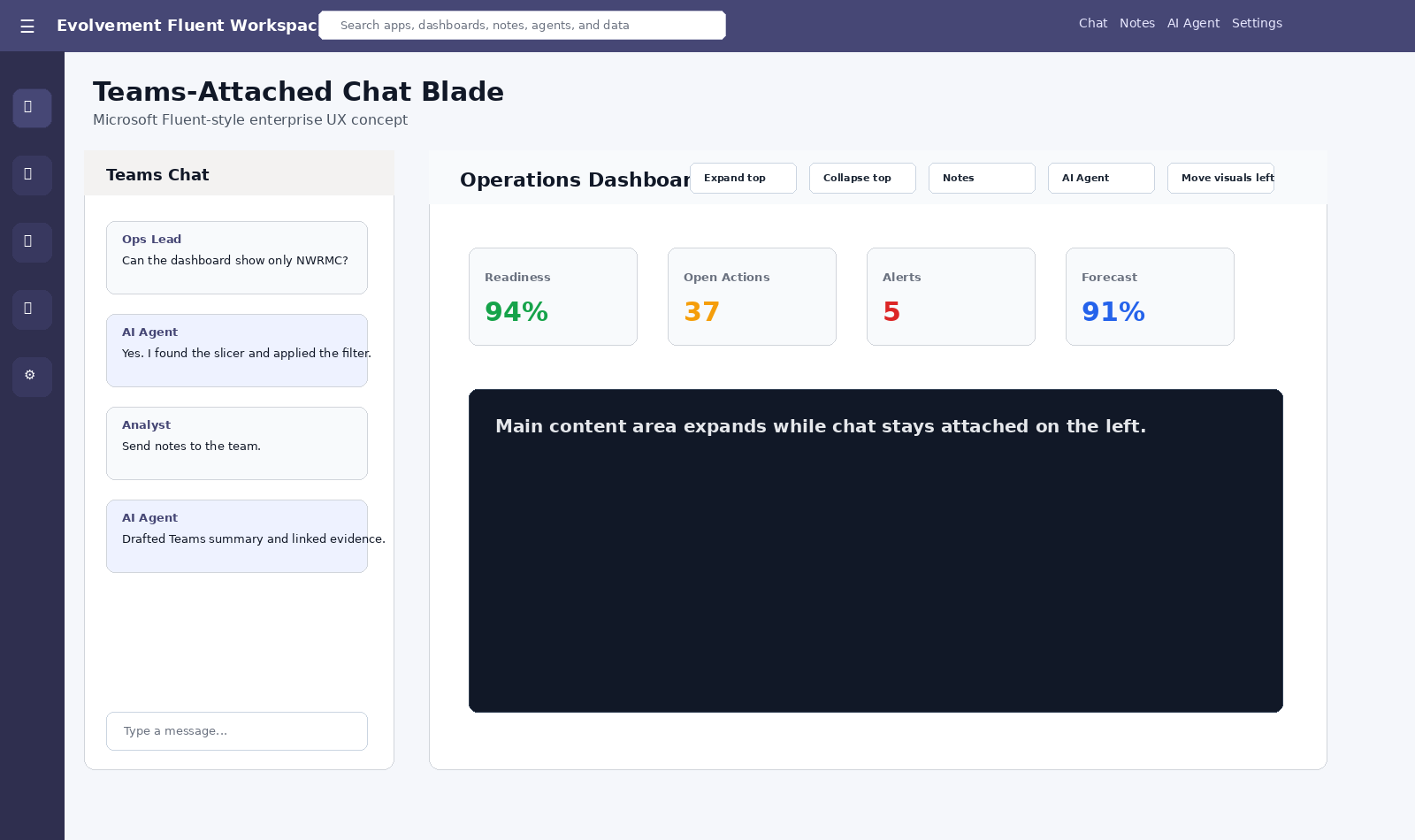
Fluent UI Teams chat left blade

Teams-Attached Chat Blade

A Teams-style chat blade stays attached to the left side while the main application remains visible.
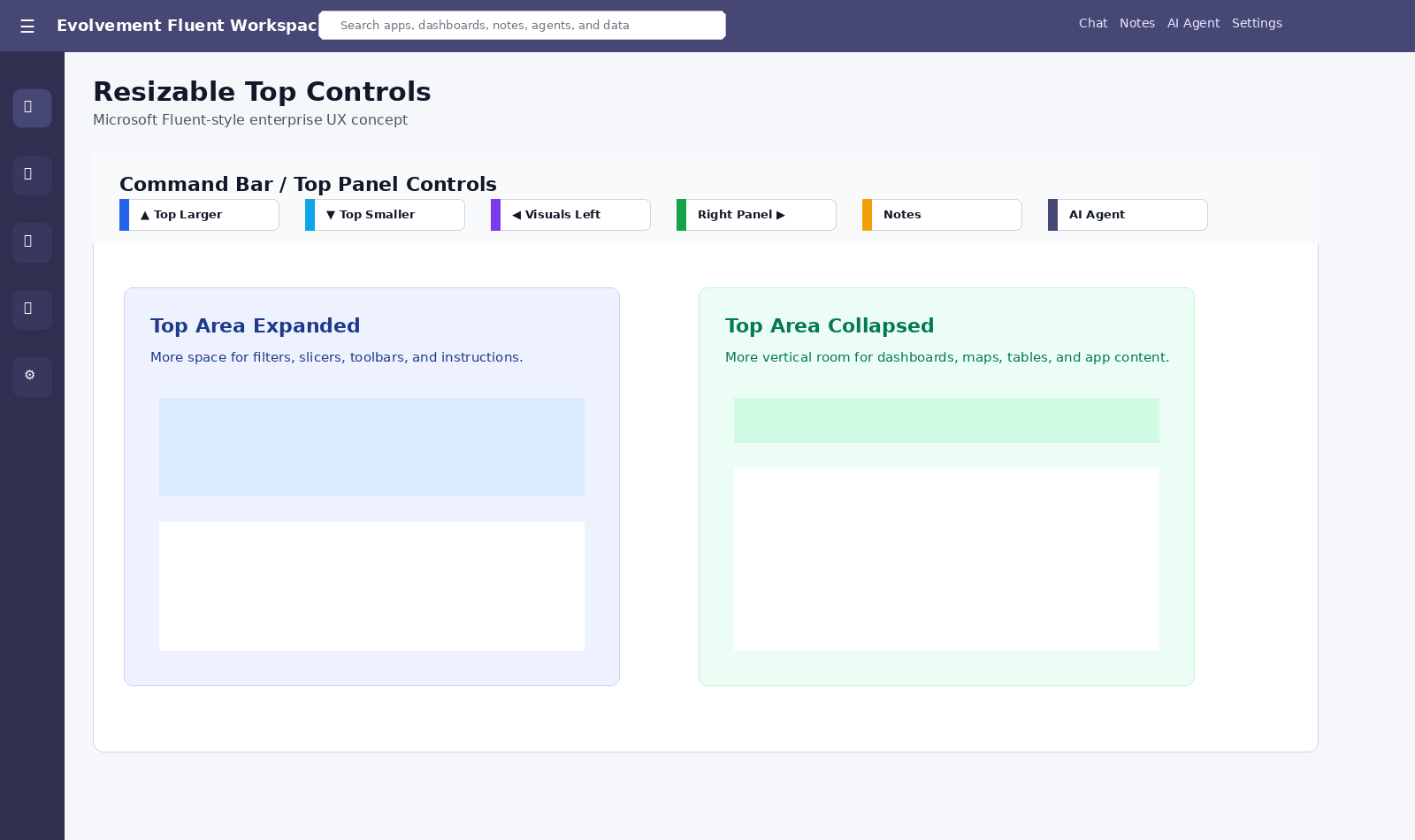
Fluent UI top resize controls

Top Resize Controls

Command buttons make the top section larger or smaller so users can balance filters, controls, and main content.
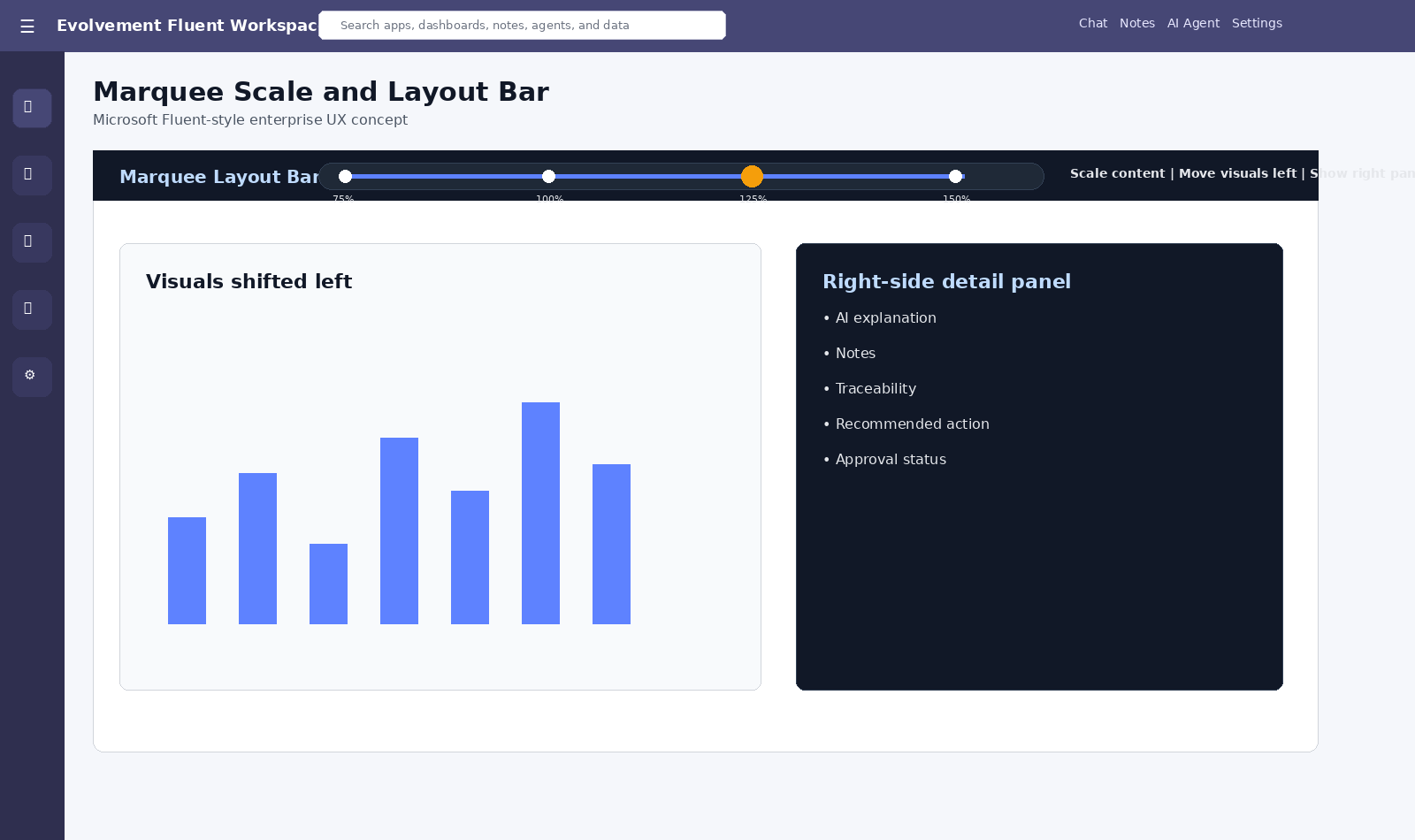
Fluent UI marquee scale layout bar

Marquee Scale and Layout Bar

A marquee control bar scales content, shifts visuals left, and reveals a right-side panel for more detail.
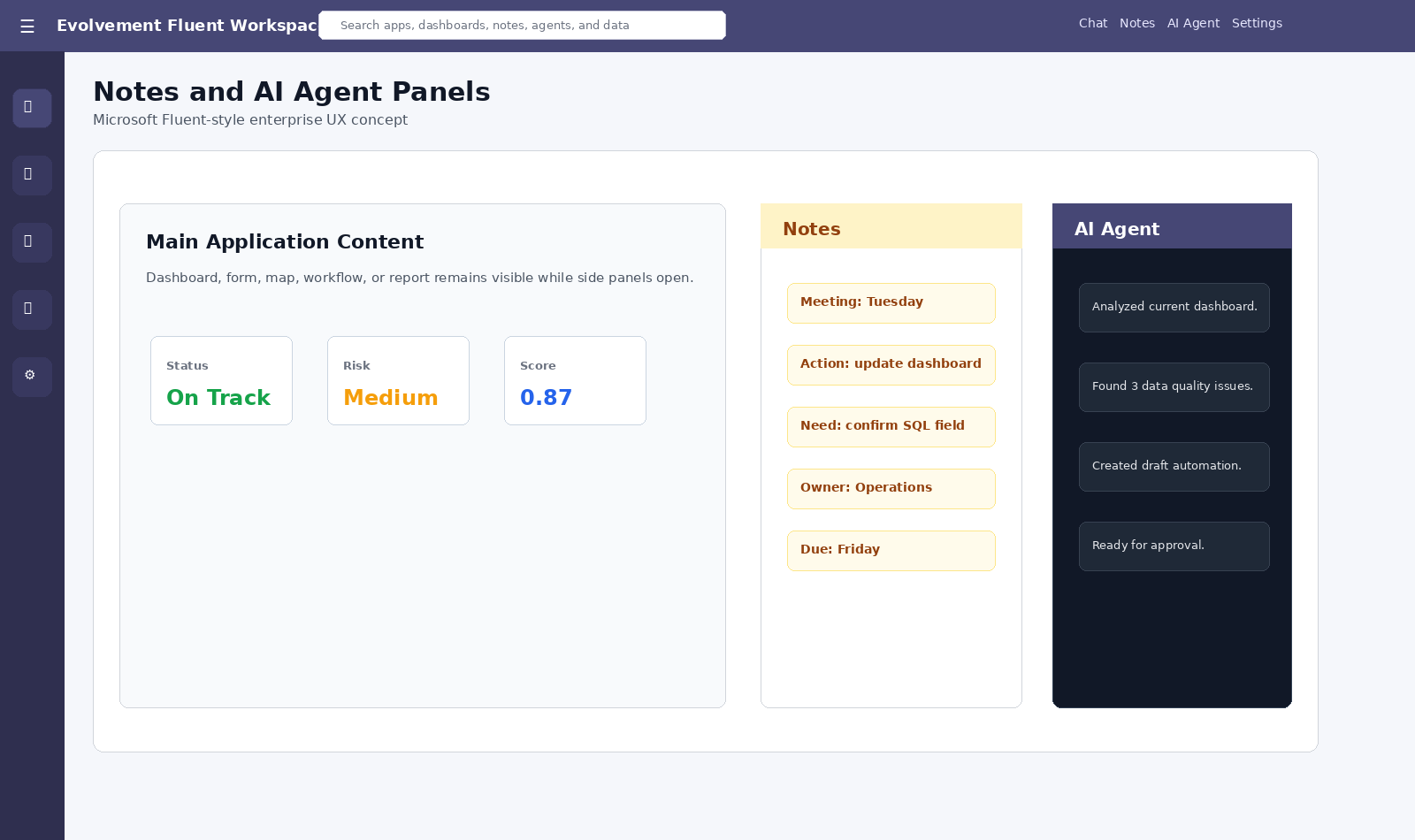
Fluent UI notes and AI Agent panels

Notes and AI Agent Buttons

Notes and AI Agent panels allow users to record decisions, view recommendations, and trigger guided actions.
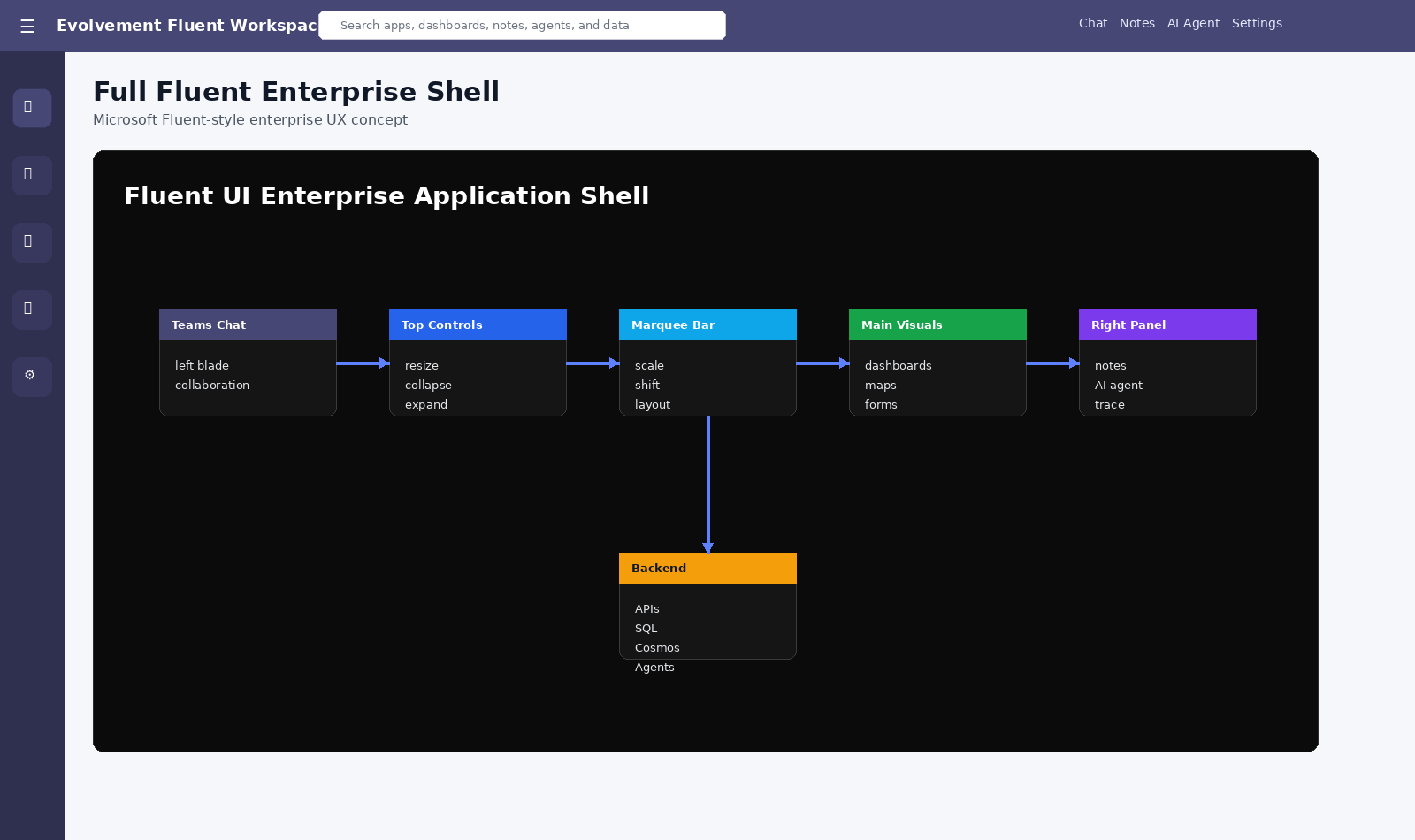
Fluent UI enterprise shell architecture

Enterprise Shell Architecture

Chat, top controls, marquee scaling, main visuals, right panels, notes, agents, and backend systems work together.

Architecture Flow

Left Blade

Teams chat, collaboration, user support, questions, and team context.

Top Controls

Resize, collapse, expand, filter, scale, and change page layout.

Main Visuals

Dashboards, maps, reports, forms, workflows, and operational data.

Right Panel

Notes, AI Agent, traceability, explanations, and recommendations.

Actions

APIs, databases, automations, approvals, dashboards, and updates.

This layout keeps users productive because collaboration, controls, visuals, notes, and AI guidance remain visible together. The interface supports analysis, explanation, action, and follow-up without forcing users to leave the page.

Business Value

  • Cleaner user experience for complex enterprise systems.
  • Better adoption because the interface looks familiar to Microsoft users.
  • More useful dashboards because chat, notes, agents, and traceability stay close to the visuals.
  • Improved productivity through resizable areas, marquee scaling, and side panels.
  • Stronger AI workflow support through visible agent actions and approval controls.

Example Production Flow

  • User opens an operational dashboard or web application.
  • Teams-style chat remains attached on the left for collaboration.
  • User resizes the top section or scales content with the marquee bar.
  • User opens Notes or AI Agent from the command bar.
  • AI Agent explains a visual, recommends action, and triggers an approved workflow.
  • Notes, traceability, and outcomes remain attached to the same page.
Back to Capabilities